


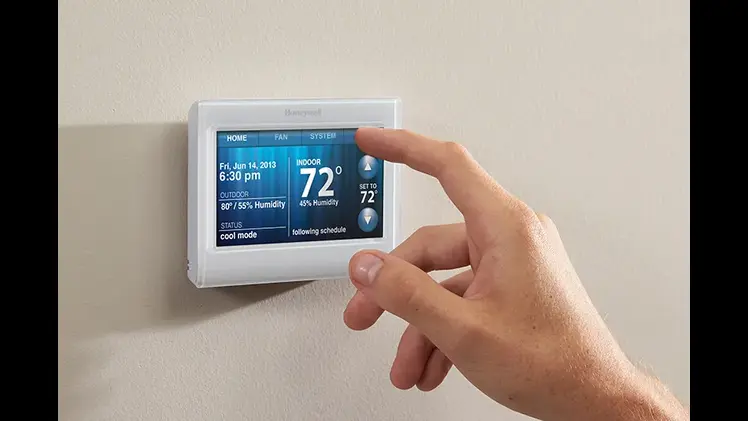
Adding a honeywell thermostat to google home can significantly enhance your smart home experience, allowing you to control your home’s temperature with voice commands or via the Google Home app. However, the process is not always seamless. Several common issues can arise during setup or operation, leading to frustration for users. We will explore these common problems, providing clear solutions that can help resolve them effectively. Understanding these potential roadblocks and how to overcome them can make your smart home journey smoother and more enjoyable.
Problem 1: Honeywell Thermostat Not Showing Up in Google Home App
One of the most common issues users encounter is the failure of the Honeywell thermostat to appear in the Google Home app. This issue typically arises during the initial setup process when linking the Honeywell account to Google Home. Several factors could contribute to this problem, including incorrect login credentials, issues with the Honeywell Home app, or connectivity problems.
To resolve this issue, verify that you use the correct login credentials for your Honeywell account. Ensure you have a stable internet connection, as a weak Wi-Fi signal can prevent the thermostat from appearing in the app. If the credentials and connectivity are correct, try restarting the Honeywell Home and Google Home apps. Clearing the cache of both apps can also help resolve any underlying issues. If the problem persists, unlink and relink the Honeywell account from the Google Home app, following the prompts carefully to ensure proper integration.
Problem 2: Thermostat Not Responding to Voice Commands
Another frequent issue is when the Honeywell thermostat does not respond to voice commands through Google Home. This issue can be particularly frustrating, as it undermines the convenience of integrating a smart thermostat with Google Assistant. The root cause of this problem can often be traced back to a miscommunication between the devices or an issue with the Google Assistant settings.
To fix this issue, first, check that the Honeywell thermostat is properly linked to Google Home. You can do this by opening the Google Home app, selecting the thermostat, and ensuring it is assigned to the correct room. Try reconfiguring the voice commands if the thermostat is linked correctly but still not responding. Sometimes, Google Assistant may not recognize the specific phrases you are using. You can test this by trying different command variations or by ensuring you use the correct name for the thermostat in the Google Home app. If all else fails, resetting the Google Home device and the Honeywell thermostat can help re-establish the connection.
Problem 3: Connectivity Issues Between Honeywell Thermostat and Wi-Fi
Connectivity issues between the Honeywell thermostat and the home Wi-Fi network are another common problem. A stable Wi-Fi connection is crucial for the thermostat to communicate with Google Home and execute commands. When the connection drops, the thermostat may not appear in the Google Home app or may not respond to commands.
To address connectivity issues, start by ensuring that your Wi-Fi network is functioning correctly and that the Honeywell thermostat is within range of the router. A weak Wi-Fi signal can cause intermittent connectivity problems, so you may need to move the router closer to the thermostat or use a Wi-Fi extender to boost the signal. Additionally, check for any firmware updates for the Honeywell thermostat and the router, as outdated software can cause compatibility issues. If the thermostat still has trouble connecting, try restarting the router and the thermostat. In some cases, resetting the network settings on the thermostat and reconfiguring the Wi-Fi connection from scratch may be necessary.
Problem 4: Google Home Not Recognizing Multiple Honeywell Thermostats
For users with multiple Honeywell thermostats in their homes, Google Home may sometimes fail to recognize all of the devices or have trouble distinguishing between them. This can be a significant issue, particularly if you rely on voice commands to control the temperature in different rooms.
To solve this problem, start by ensuring each thermostat has a unique name in the Google Home app. Naming each device according to its location, such as “Living Room Thermostat” or “Bedroom Thermostat,” can help Google Assistant differentiate between them. If the names are set correctly but the issue persists, try assigning each thermostat to a specific room within the Google Home app. This organization can help Google Home recognize and control the devices more effectively. Additionally, ensure that all thermostats are connected to the same Wi-Fi network and that there are no connectivity issues. If Google Home still struggles to recognize the devices, unlinking and relinking each thermostat can often resolve the issue.
Adding a Honeywell thermostat to Google Home can greatly enhance your home’s comfort and efficiency, but various issues can arise during the setup and use. We have explored common problems such as the thermostat not appearing in the Google Home app, connectivity issues, voice command failures, difficulties with multiple thermostats, and incorrect temperature displays. By following the troubleshooting steps provided, you can resolve these issues and enjoy a seamless smart home experience. Remember, maintaining updated software, proper configuration, and stable connectivity is vital to ensuring your Honeywell thermostat functions optimally with Google Home.
