



I. Introduction
In the rapidly evolving world of technology, efficient storage management is crucial for optimal PC performance. Whether you’re a casual user, a dedicated gamer, or a professional content creator, the need to manage and optimize storage cannot be overstated. Storage solutions directly impact the speed and responsiveness of your computer, affecting everything from boot times to the ability to handle multiple applications simultaneously. As the volume of data we generate and consume continues to surge, ensuring that your PC storage is both effective and efficient has become a priority. For more insights on optimizing storage solutions, you can visit finddiffer.com .
II. Assessing Your Storage Needs
Before diving into smart storage solutions, it’s essential to first understand your current storage requirements. Evaluating your storage usage lays the groundwork for selecting the most effective solutions tailored to your needs.
A. Evaluating Current Storage Usage
The starting point for managing your PC’s storage is to assess your current usage. Begin by examining your computer’s built-in storage metrics. Both Windows and macOS offer straightforward methods to view how storage is allocated. On Windows, you can access this information through the “Storage” settings, where you’ll see a breakdown of used and available space across various categories such as apps, system files, and temporary files. On macOS, the “About This Mac” feature provides a similar overview, including details about different file types and their impact on storage.
B. Tools And Methods To Check Disk Space And Usage Patterns
To gain a deeper insight into disk space and usage patterns, various tools can be employed. For Windows users, third-party applications like WinDirStat or TreeSize Free offer a visual representation of disk usage, making it easier to identify large files and folders consuming significant space. macOS users can utilize DaisyDisk or OmniDiskSweeper for similar functionality. These tools provide detailed reports, allowing you to pinpoint which files and applications are taking up the most space.
Upgrading Storage Hardware
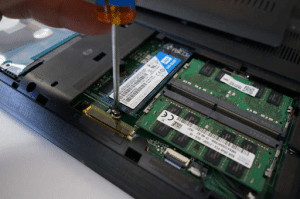
One of the most effective ways to enhance your PC’s storage capabilities is by upgrading the hardware. Transitioning from traditional hard disk drives (HDDs) to solid-state drives (SSDs) can yield significant performance improvements. SSDs offer faster read and write speeds compared to HDDs, leading to quicker boot times, faster application loading, and overall enhanced system responsiveness.
Internal drives offer faster access speeds and integrate seamlessly with your system, while external drives provide flexibility and convenience for off-site backups and data transfer.
III. Software Solutions For Storage Optimization
Efficient storage management extends beyond just upgrading hardware or utilizing cloud storage; software solutions play a crucial role in optimizing and maintaining your PC storage. Leveraging the right software tools can help you clean up unnecessary files, streamline data organization, and ultimately free up valuable space.
A. Disk Cleanup Tools
Disk cleanup tools are fundamental in maintaining a clutter-free system. On Windows, the built-in Disk Cleanup utility provides a straightforward way to remove temporary files, system cache, and other unnecessary data that can accumulate over time. This tool scans your disk for files that are safe to delete, helping to reclaim disk space and improve system performance.
For more comprehensive cleanup, third-party tools like CCleaner offer additional features. CCleaner not only cleans temporary files and system caches but also includes options to clean up browser history, registry entries, and unused applications. Its advanced options allow for deeper system cleaning, which can be particularly useful for users who require more granular control over their cleanup processes.
B. Defragmentation For HDDs
For users with traditional hard disk drives (HDDs), defragmentation is a vital process. Over time, as files are written, deleted, and modified, they become fragmented, meaning they are stored in non-contiguous blocks across the disk. This fragmentation can slow down data access and overall system performance.
Defragmentation rearranges fragmented files, consolidating them into contiguous blocks, which improves read and write speeds. On Windows, the built-in Disk Defragmenter tool can be scheduled to run automatically, ensuring that your HDD remains optimized. For users seeking additional features, third-party defragmentation tools like Defraggler provide more control and detailed reports on fragmentation.
C. Duplicate File Finders
Duplicate files are often overlooked yet significant contributors to wasted disk space. They can occur due to multiple downloads, backups, or even inadvertent file copies. Duplicate file finders are specialized tools designed to scan your system for these redundant files.
Tools like Duplicate Cleaner or Auslogics Duplicate File Finder identify and list duplicate files based on name, size, or content. By reviewing and removing these duplicates, you can reclaim significant amounts of space. These tools often come with safety features, such as previews and selective deletion, to ensure that only unnecessary duplicates are removed without risking important files.
IV. Data Management Best Practices
Effective data management is essential for maintaining optimal PC performance and ensuring that your data is secure and accessible. By adopting best practices for data management, you can streamline your file organization, safeguard your data, and avoid common pitfalls that lead to storage inefficiencies.
A. Regular Backups And Data Redundancy
One of the fundamental principles of data management is ensuring that your data is regularly backed up. Regular backups are crucial for protecting against data loss due to hardware failure, accidental deletion, or malware attacks. Implementing a robust backup strategy involves creating copies of important files and storing them in multiple locations.
Data redundancy, which involves maintaining copies of your data in separate locations, enhances your data protection strategy. Utilize both local backups, such as external hard drives or network-attached storage (NAS), and cloud-based backups to ensure your data is secure. Cloud storage services like Google Drive, Dropbox, and OneDrive offer automated backup solutions and remote access, making them ideal for safeguarding critical files.
B. Organizing Files And Folders Efficiently
Effective file organization is key to managing your storage space and maintaining easy access to your data. Establish a logical folder structure that reflects the way you use and access your files. For example, categorize documents by type or project, and use subfolders to further organize related files. Consistent naming conventions and folder hierarchy can prevent clutter and make it easier to locate specific files.
Implementing a file management strategy, such as regular reviews and updates of your folder structure, ensures that your organization system remains relevant as your data evolves. Utilizing tools like Windows File Explorer for macOS Finder’s tagging and search features can also enhance your ability to quickly find and manage files.
C. Deleting Unnecessary Files And Bloatware
Another important aspect of data management is regularly deleting unnecessary files and bloatware. Temporary files, old downloads, and duplicate files can accumulate over time and consume valuable storage space. Use disk cleanup tools, such as Windows Disk Cleanup or CCleaner, to identify and remove these files.
Additionally, bloatware pre-installed software or unnecessary applications that take up space and resources can slow down your system. Periodically review installed programs and uninstall those that are no longer needed.
V. Conclusion
Effective data management is a cornerstone of maintaining optimal PC performance and ensuring data security. Regular backups and data redundancy safeguard against data loss, while efficient file organization and the deletion of unnecessary files keep your PC storage system streamlined and functional. By adopting these best practices, you can enhance your computing experience, ensuring that your PC remains responsive and reliable.
Frequently Asked Questions (FAQ)
- What are smart storage solutions for PCs?
Smart storage solutions use advanced technologies to optimize and manage your PC’s storage more efficiently. This includes techniques such as upgrading to solid-state drives (SSDs), utilizing cloud storage, and employing software tools for disk cleanup and data compression.
- How can I assess my current storage needs?
You can assess your storage needs by checking your PC’s storage usage through built-in tools like Windows Disk Cleanup or macOS Storage Management. Additionally, third-party applications like WinDirStat or DaisyDisk can provide detailed insights into your disk space and usage patterns.
- What are the benefits of upgrading from an HDD to an SSD?
Upgrading from a hard disk drive (HDD) to a solid-state drive (SSD) offers faster data access speeds, quicker boot times, and improved overall system performance. SSDs are more reliable and use less power, which can also extend your laptop’s battery life.
- How do I choose between internal and external storage drives?
Internal drives are ideal for faster access speeds and are often used as primary storage, while external drives offer portability and convenience for backups and data transfer. Consider your needs for speed, capacity, and mobility when choosing between them.
- What is the role of cloud storage in smart storage solutions?
Cloud storage provides a scalable solution for storing and accessing files remotely. It offers benefits such as automated backups, off-site data redundancy, and easy access from multiple devices, complementing local storage solutions.
